Kubernetes & Podman Desktop
Kubernetes has emerged as the de facto standard for container orchestration, providing a robust and scalable platform for deploying and managing containerized applications. Podman Desktop seamlessly integrates with Kubernetes, enabling developers to leverage the power of Kubernetes while benefiting from the user-friendly interface and features of Podman Desktop.
Understanding Kubernetes
Kubernetes is an open-source container orchestration system that automates the deployment, scaling, and management of containerized applications. It provides a declarative approach to defining and managing application components, ensuring high availability, scalability, and fault tolerance. Key concepts in Kubernetes include:
-
Pods: The smallest deployable unit in Kubernetes, consisting of one or more containers that share network and storage resources.
-
Services: An abstraction layer that provides a stable network endpoint for accessing pods, enabling load balancing and service discovery.
-
Deployments: A higher-level abstraction that manages the deployment and scaling of pods, ensuring the desired state of the application is maintained.
-
ConfigMaps and Secrets: Objects used to store configuration data and sensitive information, respectively, which can be injected into pods as environment variables or mounted as files.
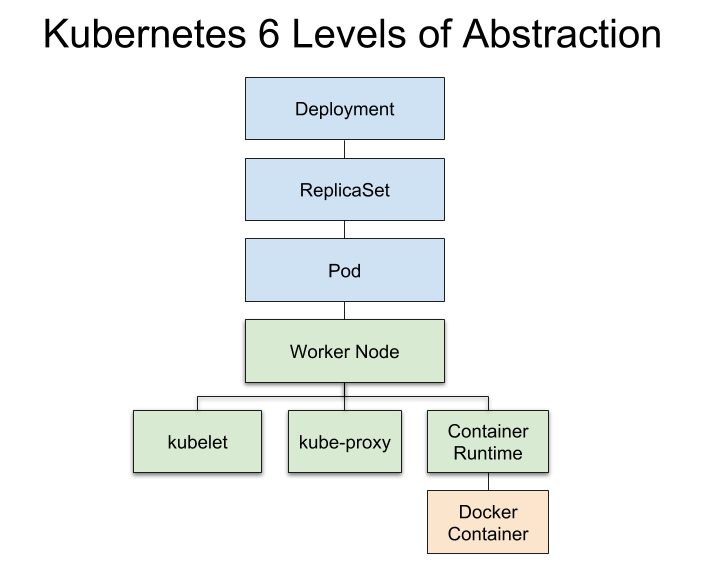
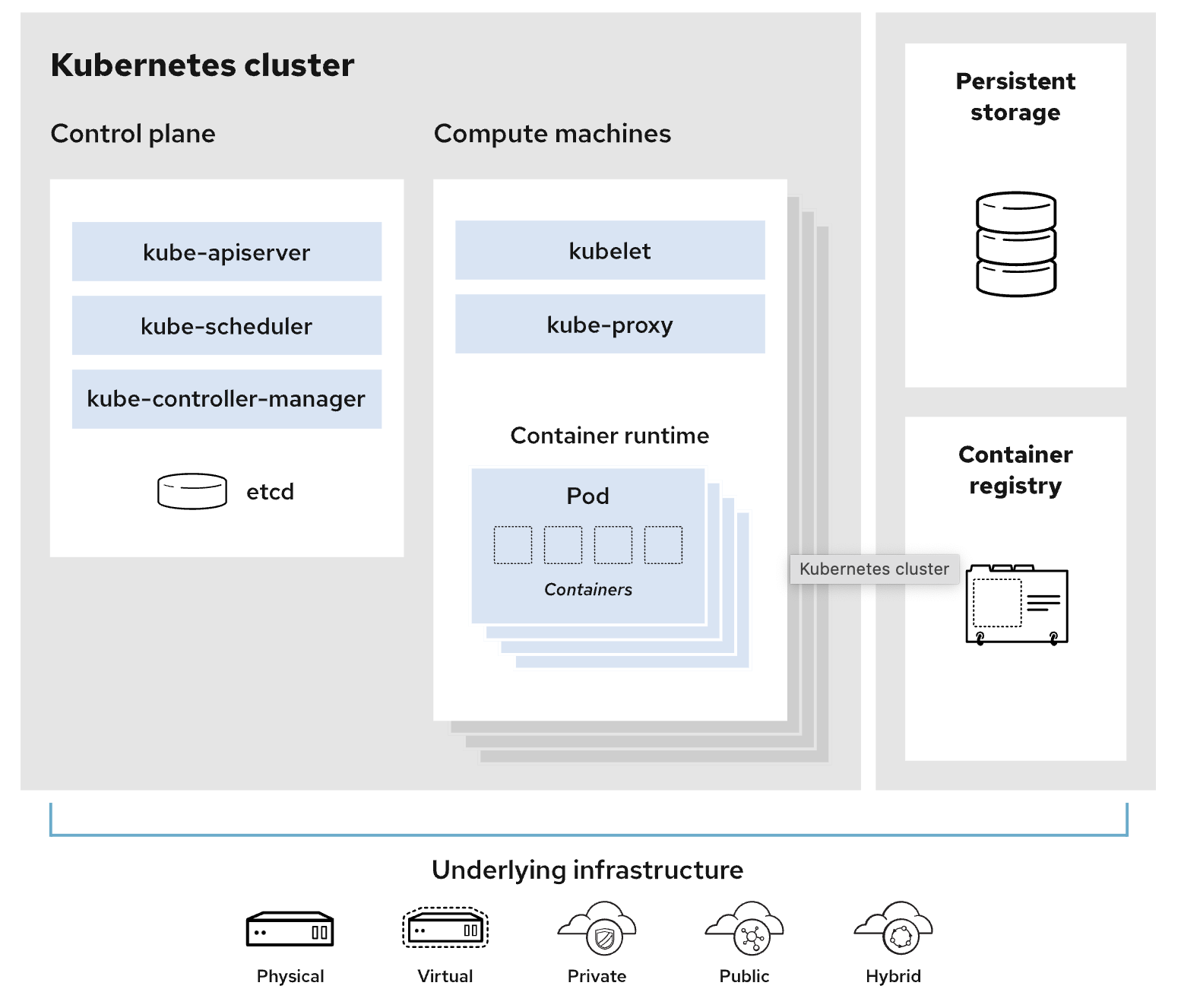
Kubernetes follows a declarative model, where users define the desired state of their application using YAML or JSON manifests. The Kubernetes control plane, consisting of components like the API server, scheduler, and controller manager, continuously works to ensure the actual state matches the desired state.
Integrating Kubernetes with Podman Desktop
As mentioned, Podman Desktop provides a seamless integration with Kubernetes, starting from the setup of a local Kubernetes cluster to deploying and managing applications on Kubernetes. Let’s take a look at how easy it is to spin up, and connect, to a Kubernetes cluster using Podman Desktop.
Optional: Provisioning a Kubernetes Cluster
| During this workshop, we’ll be directly connecting to a remote Kubernetes cluster. This information is just as a reference for later use. |
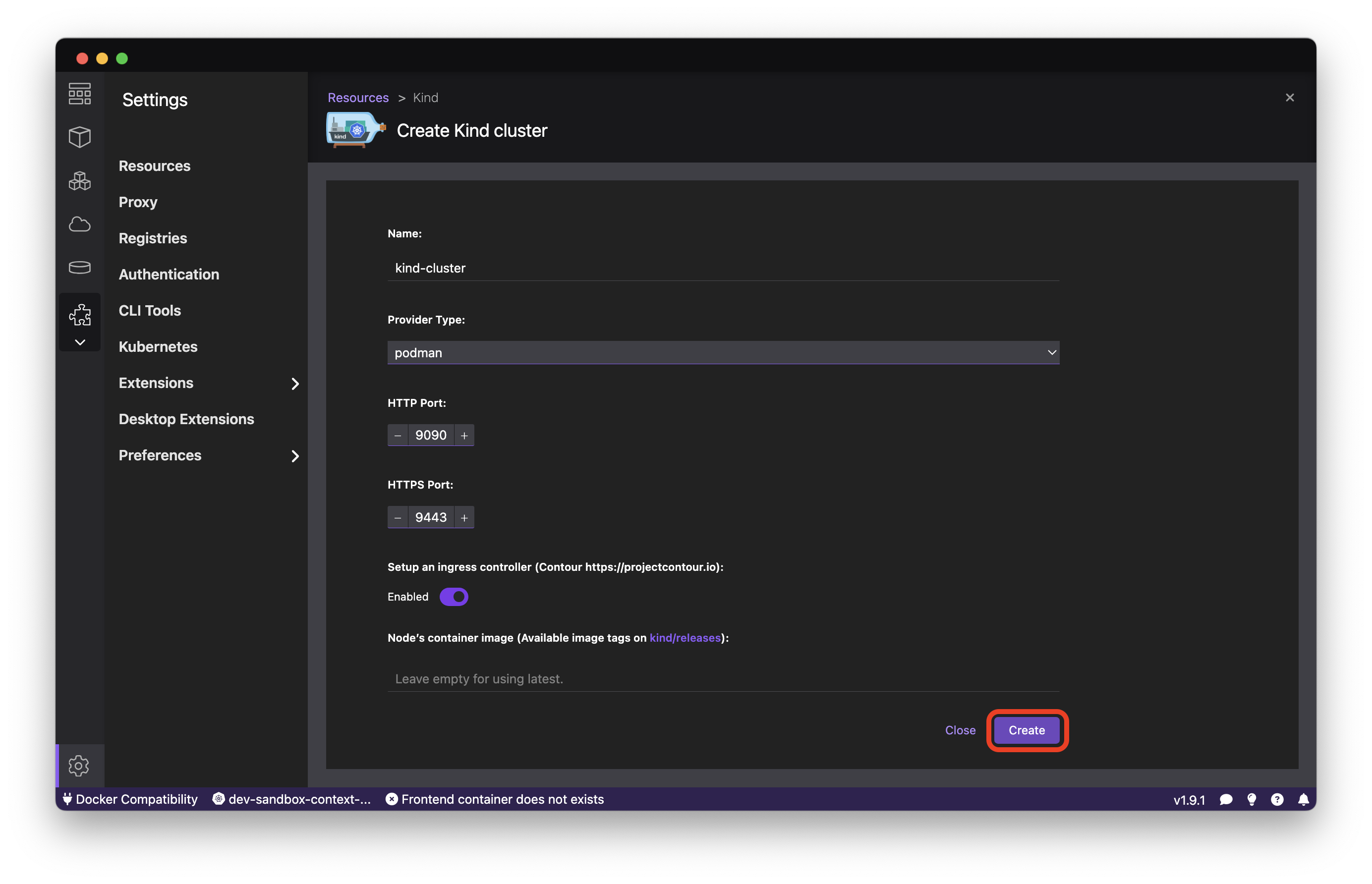
Podman Desktop includes extensions to manage local Kubernetes clusters, enabling developers to deploy and test their applications in a Kubernetes environment without the need for external setup. The local cluster is powered by KinD (Kubernetes in Docker) or Minikube, providing a lightweight and isolated Kubernetes environment. To start a local KinD cluster in Podman Desktop, firstly navigate to the Settings section in Podman Desktop and select Create new Kind cluster.
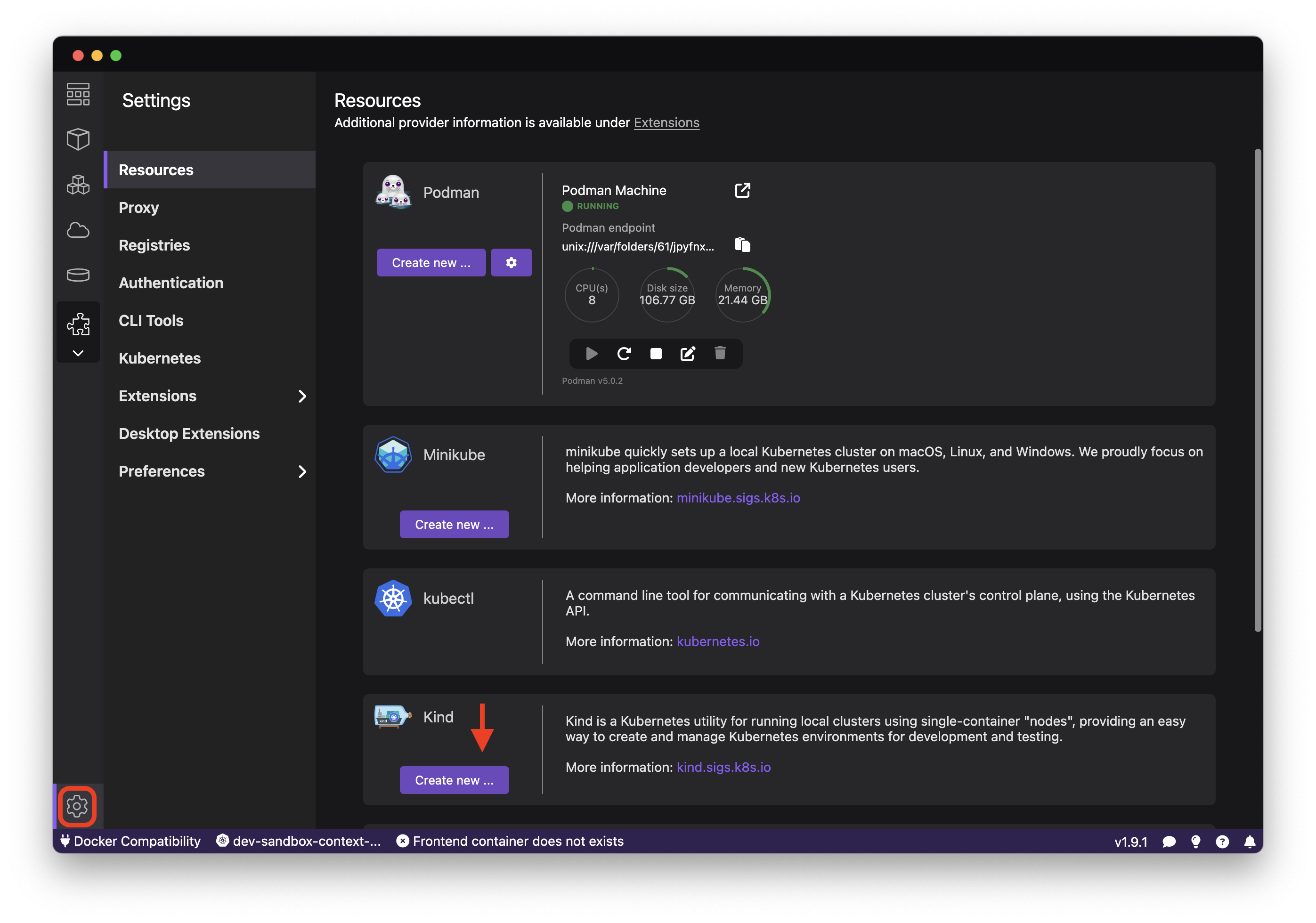
You’ll view Kind cluster settings here such as a name, port assignment (for forwarding your applications), and Kubernetes version. Choose the desired container engine provider (Podman or Docker) and click the Create button.
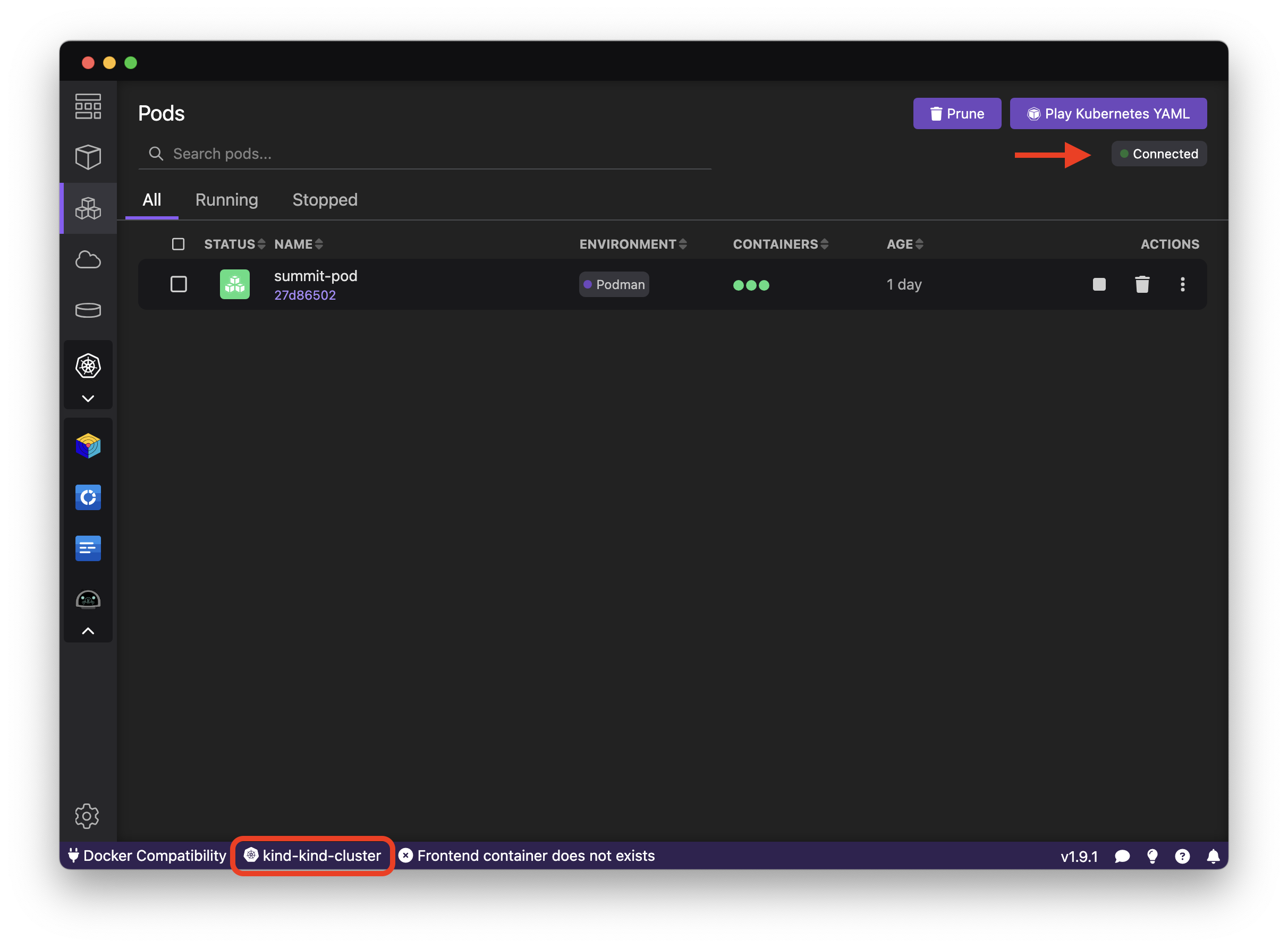
Podman Desktop will spin up the local Kubernetes cluster, and you can verify your connection from the Pods section of the interface, or at the bottom-left of the screen, where you can switch between different Kubernetes contexts.
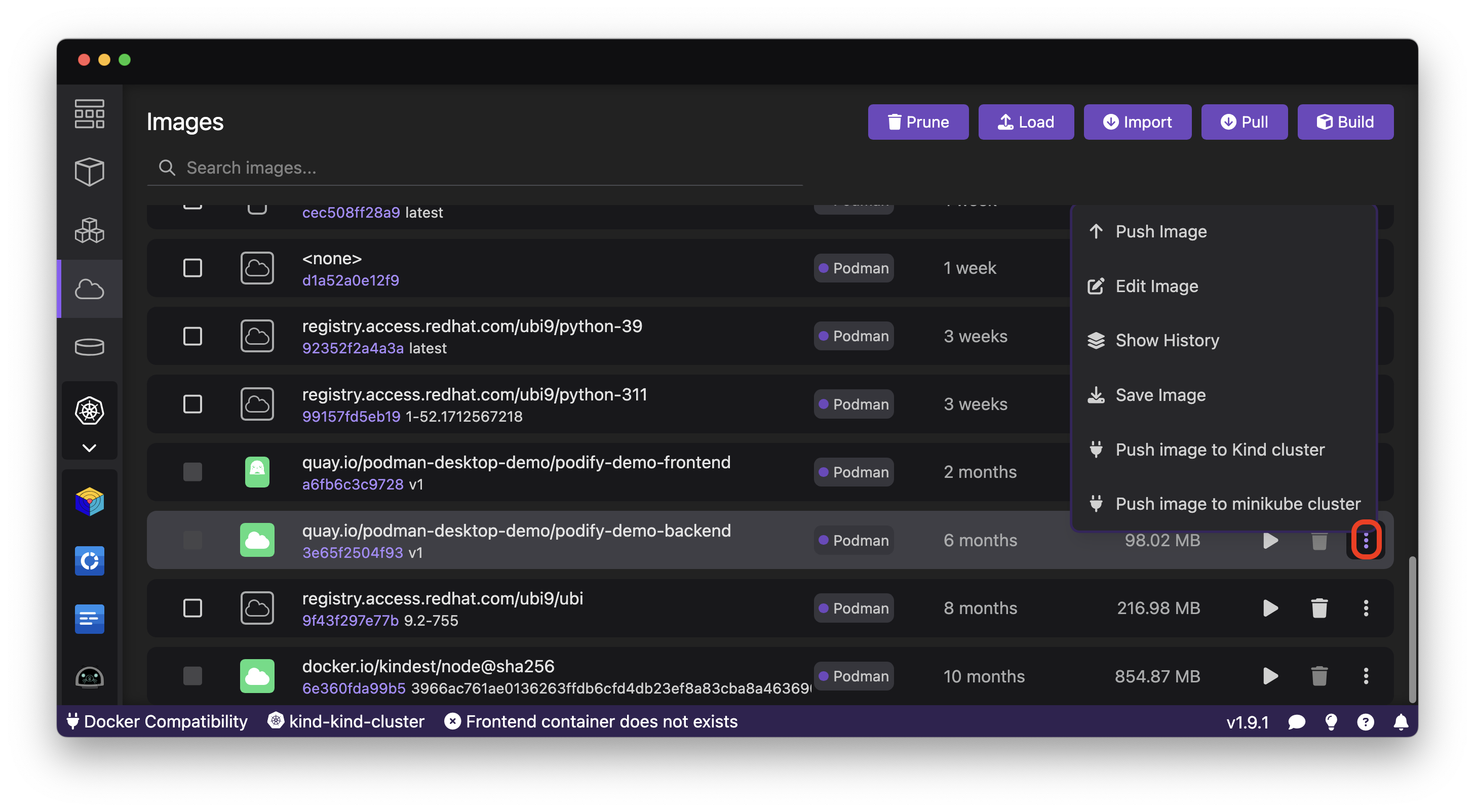
You can also follow a similar path in order to provision and connect to a Minikube cluster. In order to work with your local container images, simply load them into the cluster using through the kebab menu in the Images section.
Connecting to a Remote Kubernetes Cluster
While working with a local Kubernetes instance is one way to tackle the inner loop of your development cycle, it’s also quite common to work with remote dev/test clusters. Let’s take a look at how we can connect to a remote Kubernetes cluster. In this workshop, we’ll be using the Developer Sandbox extension, which allows us to provision and connect to a remote Kubernetes cluster in the cloud, with 14GB of RAM and 40GB of storage. To get started, let’s install it from the Dashboard, or from the Settings → Extensions section in Podman Desktop.
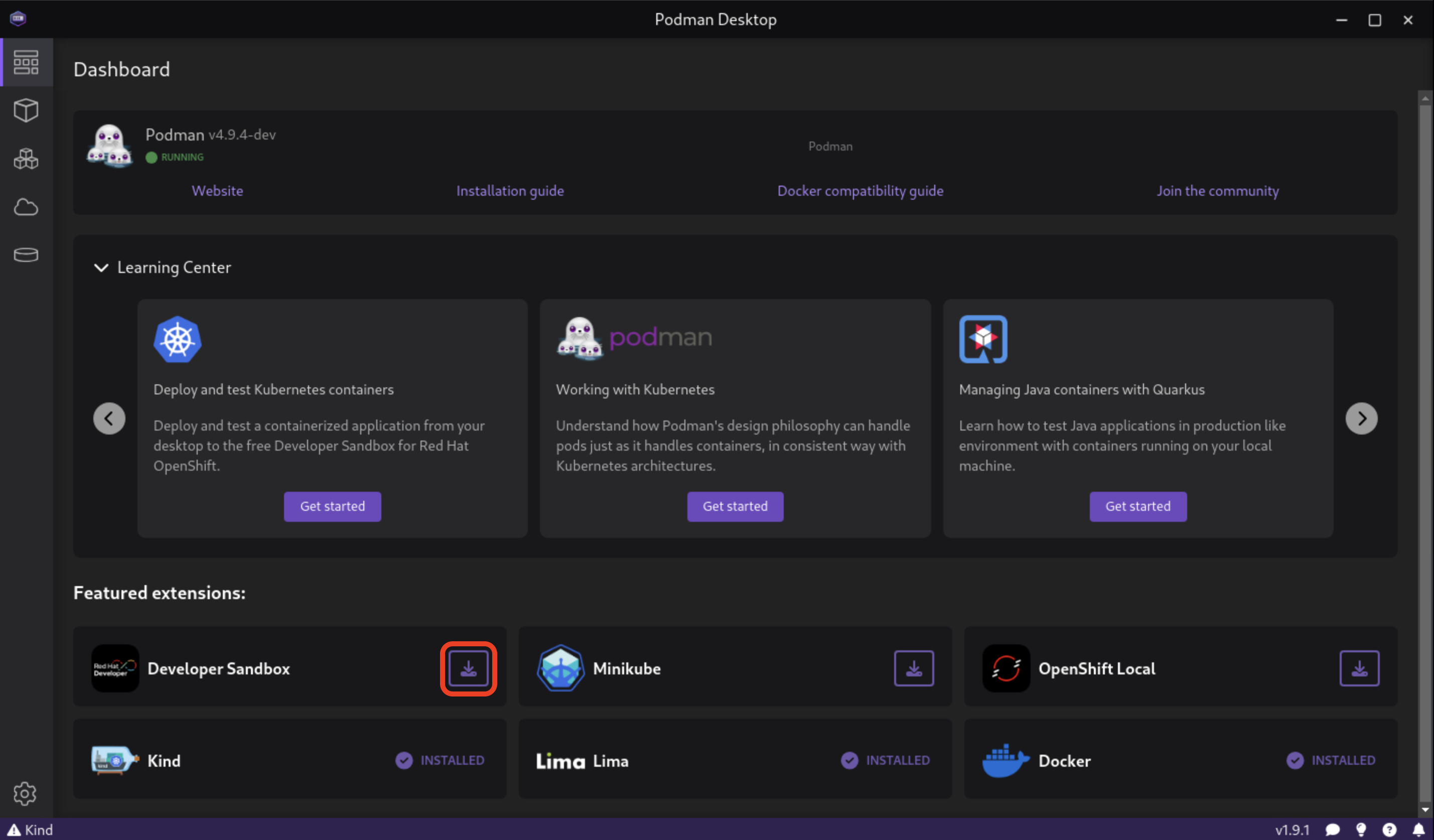
Once installed, you can provision a new cluster from the Developer Sandbox section in the Settings → Resources.
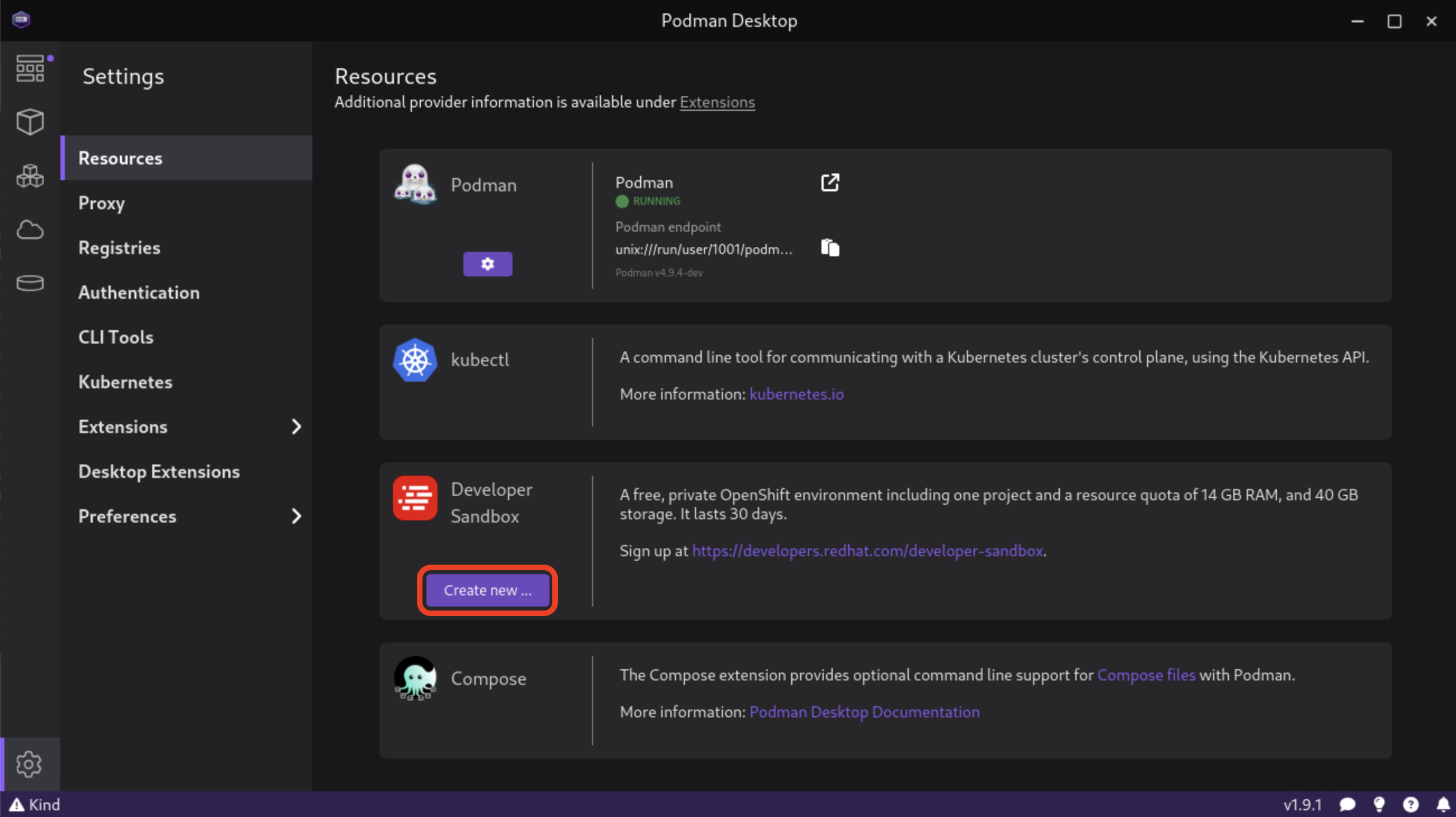
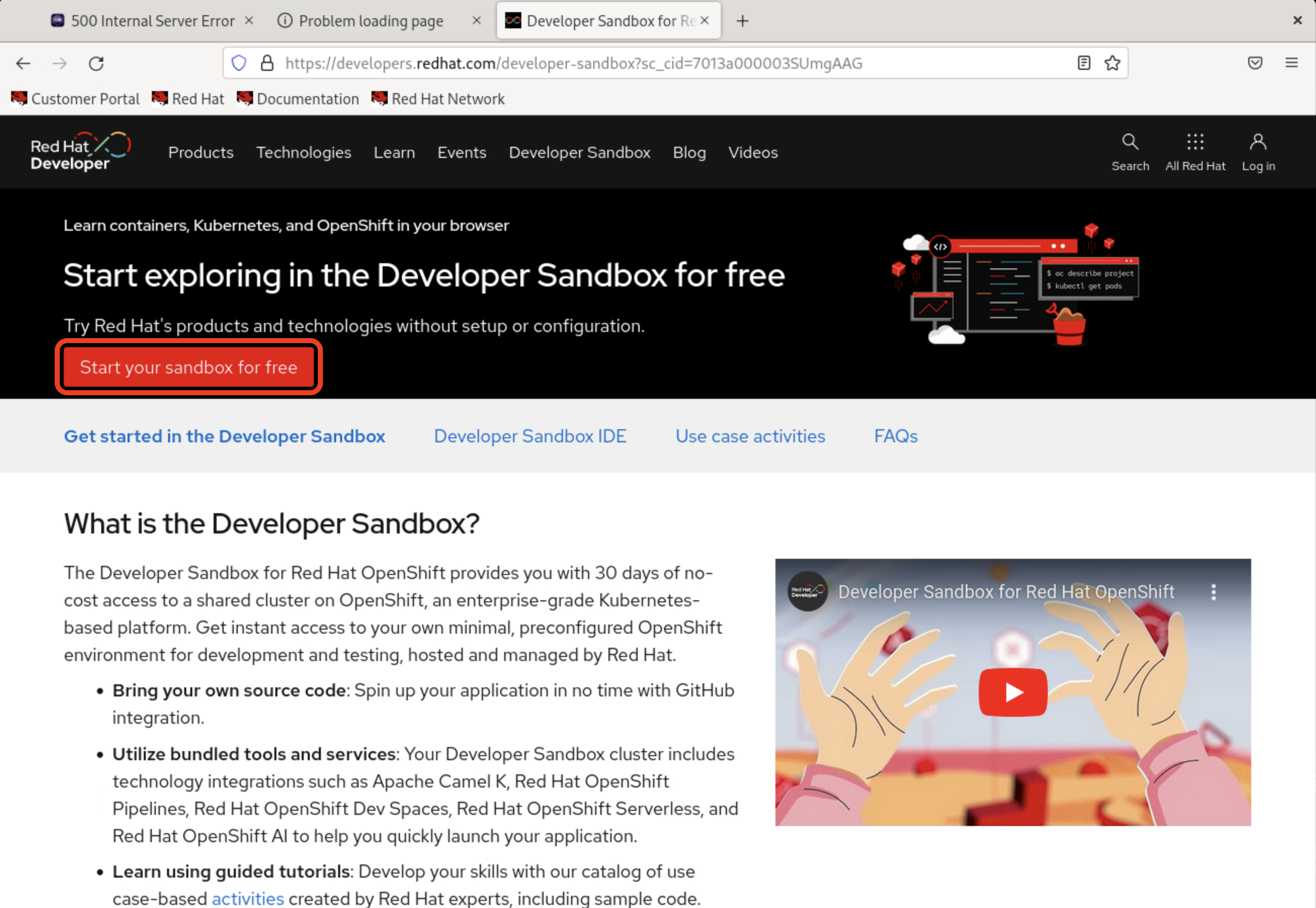
You’ll firstly prompted to log into the Developer Sandbox with your Red Hat account. Once logged in, you can access the free Red Hat OpenShift cluster when you’ll recieve the authentication token.
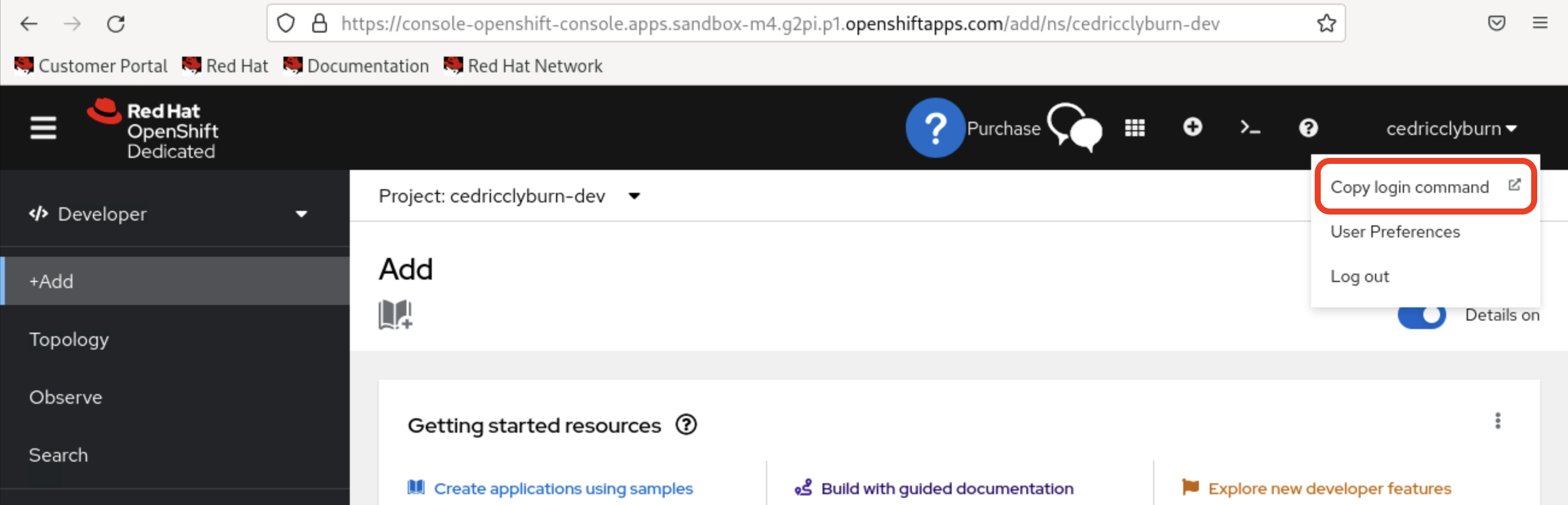
From the OpenShift Web Console, click the top-right user icon and select Copy Login Command.
After this, you’ll need to also select Display Token and copy the token.
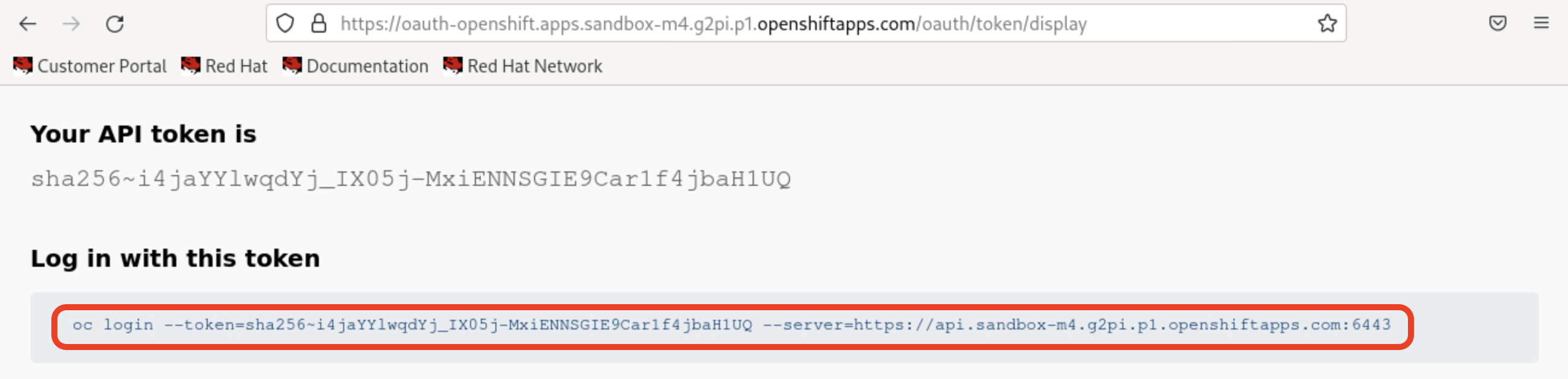
Back in Podman Desktop, paste the copied command into the Developer Sandbox section and click Create.
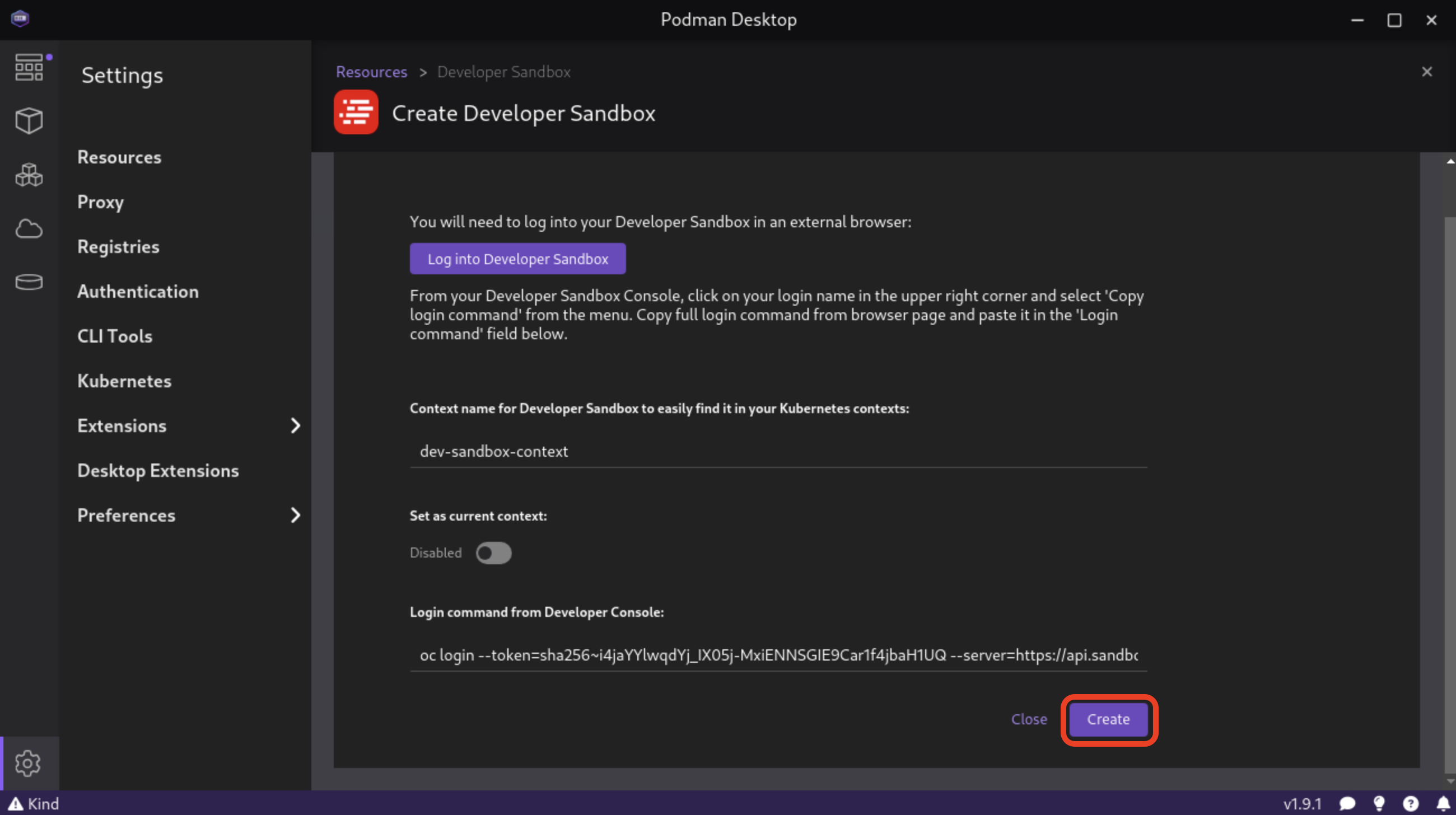
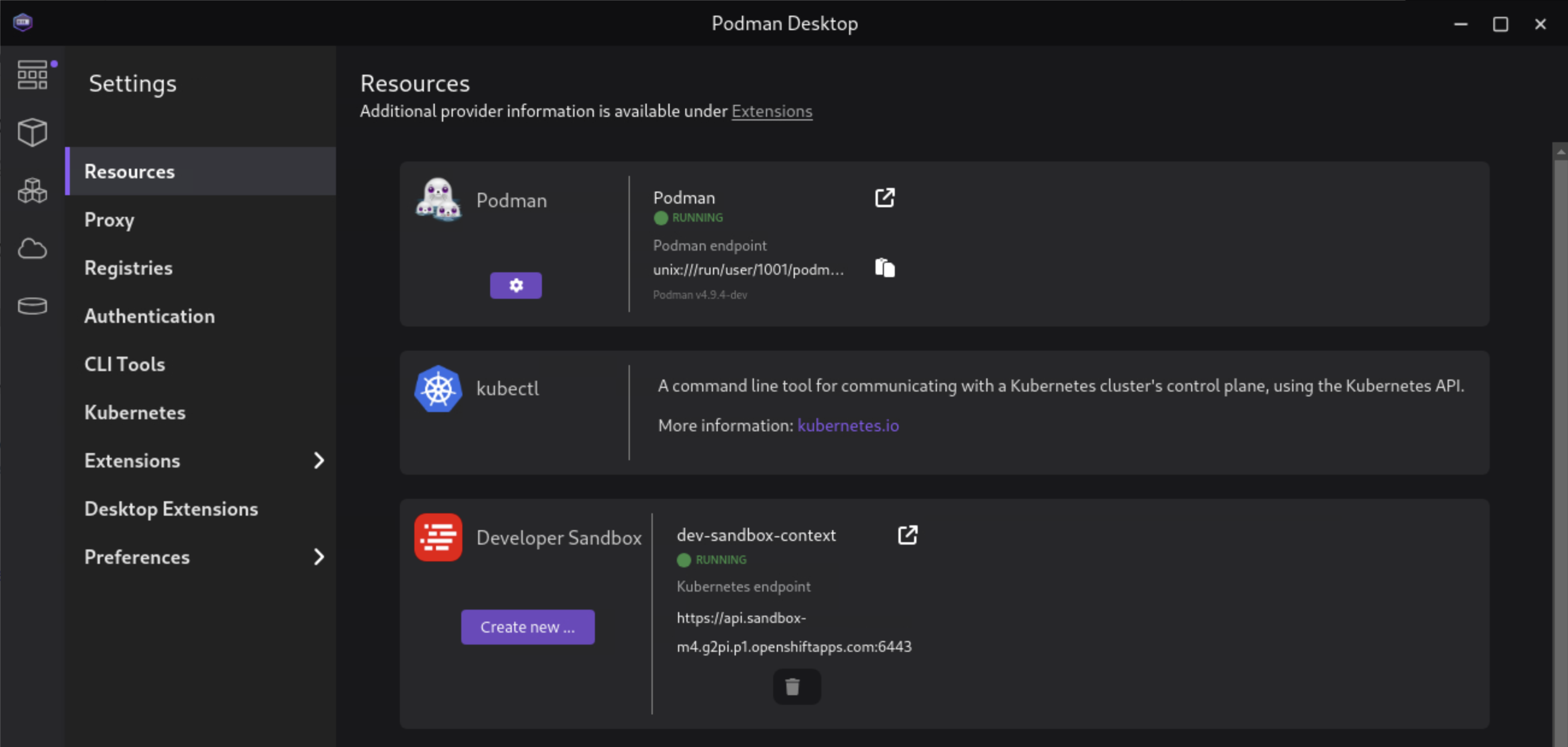
Fantastic! You are now connected to a remote Developer Sandbox Kubernetes cluster. You can verify your connection from the Resources section of the interface.
Managing Kubernetes Resources
| You may have to restart Podman Desktop after logging in to the Developer Sandbox before you can see the Kubernetes context and resources. |
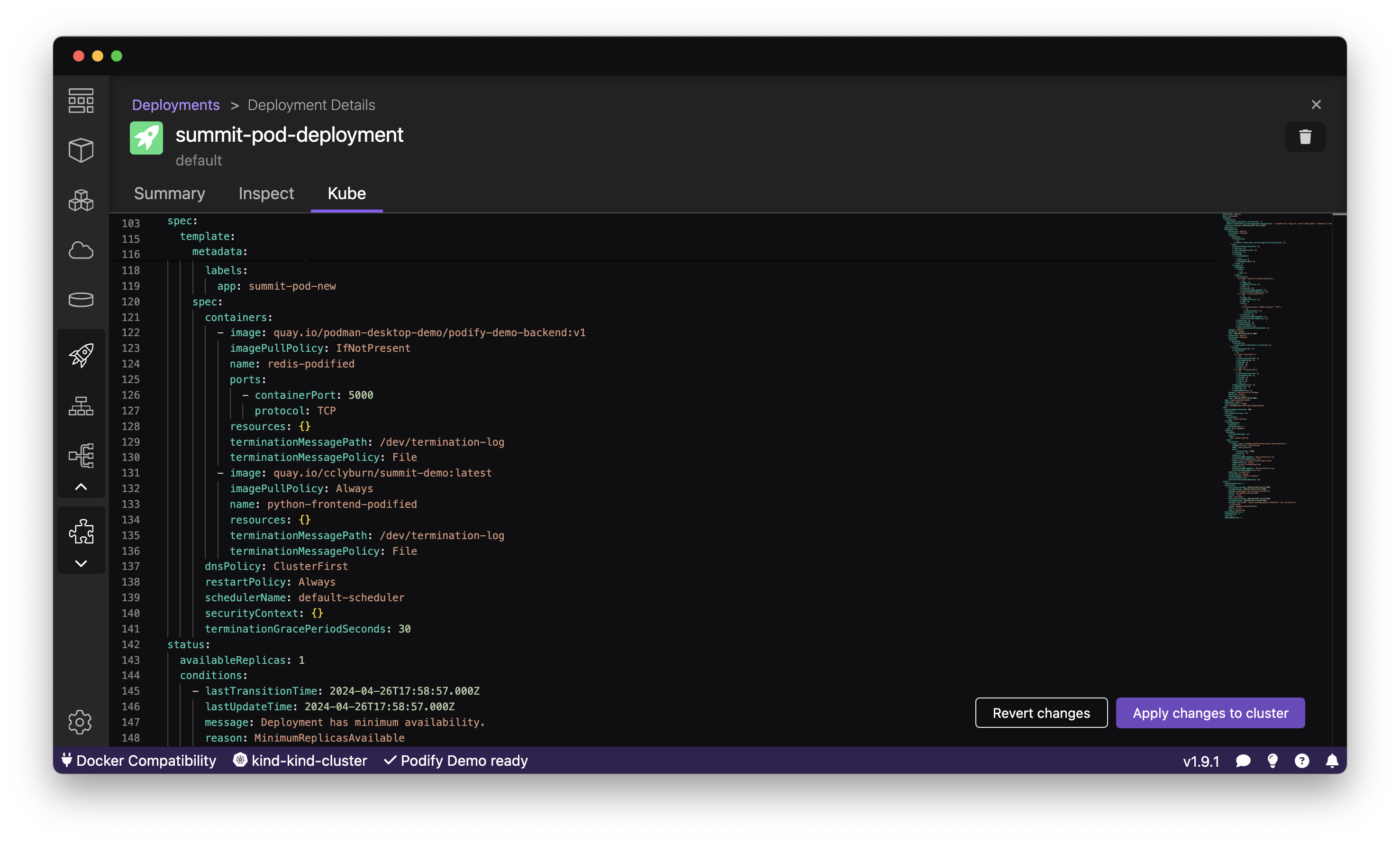
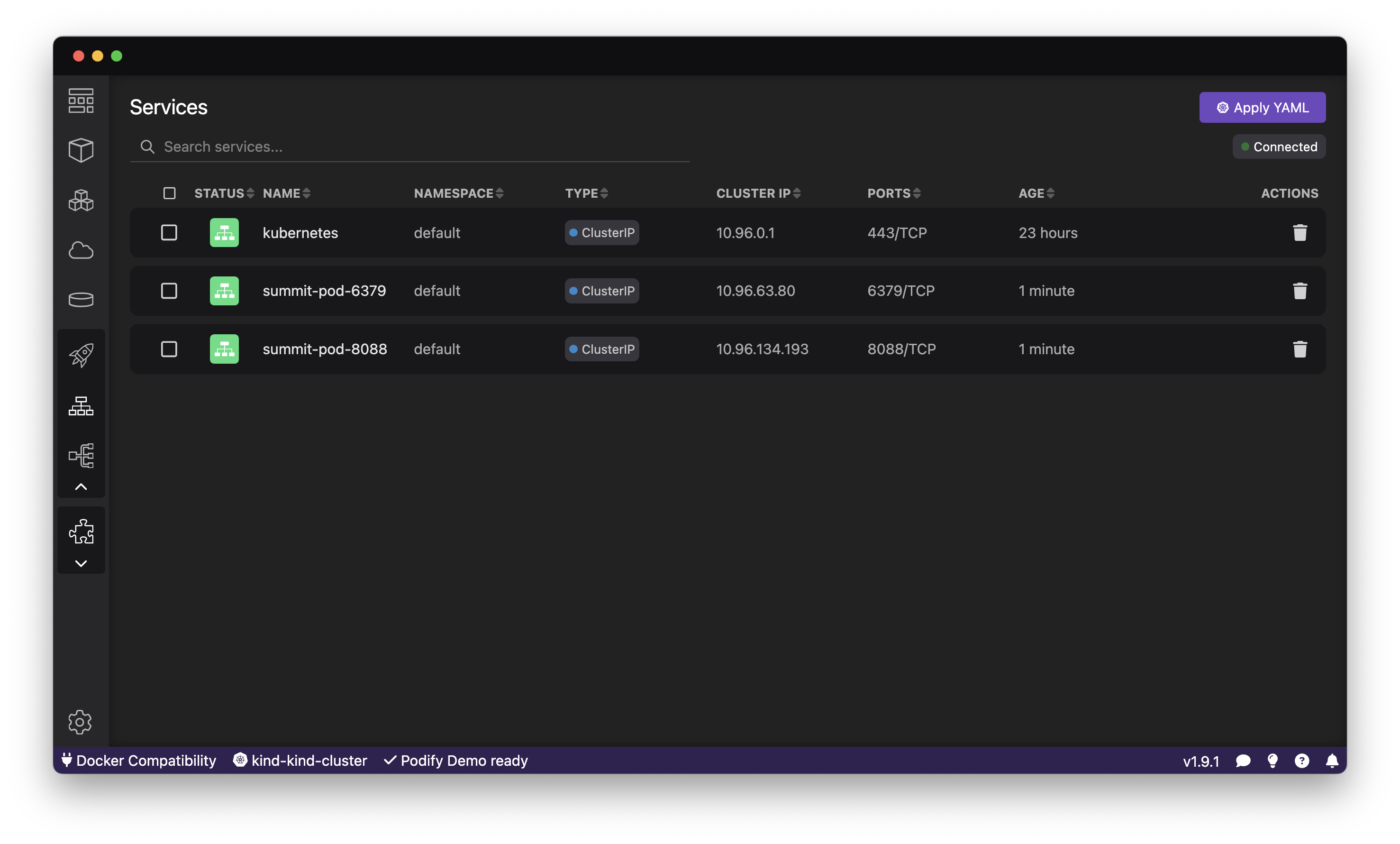
Podman Desktop provides a centralized interface for managing Kubernetes resources, including pods, services, deployments, and more. You can view and interact with Kubernetes objects directly from the Podman Desktop interface, although it’s only visible once you have a connection to a Kubernetes cluster.
The Kubernetes interface in Podman Desktop displays an overview of the cluster, including the number of nodes, pods, and services. You can drill down into specific namespaces and view the details of individual resources.
Podman Desktop integrates with the Kubernetes CLI (kubectl), allowing you to directly modify applied YAML and perform advanced operations directly from the terminal within the Podman Desktop interface.