Cockpit
Cockpit is a simple-to-use, lightweight, web-based interface for Linux servers. You can manage storage, networking, firewall, containers, and much more right from your web browser, instead of needing to use the command line. Let’s look into how to install Cockpit, as well as some basic functionality.

Installing Cockpit
Like any package, we can install Cockput using our package manager.
dnf install -y cockpitUpdating Subscription Management repositories.
Last metadata expiration check: 20:35:08 ago on Sun 02 Oct 2022 09:07:47 PM UTC.
Dependencies resolved.
================================================================================
Package Arch Version Repository Size
================================================================================
Installing:
cockpit x86_64 264.1-1.el8 rhel-8-baseos-rhui-rpms 79 k
...
Complete!Now, we can run a systemctl command to start the Cockpit service.
sudo systemctl enable --now cockpit.socketCreated symlink /etc/systemd/system/sockets.target.wants/cockpit.socket → /usr/lib/systemd/system/cockpit.socket.Finally, let’s access Cockpit by navigating to the server’s IP address followed by the port 9090, in this format: https://ip-address:9090
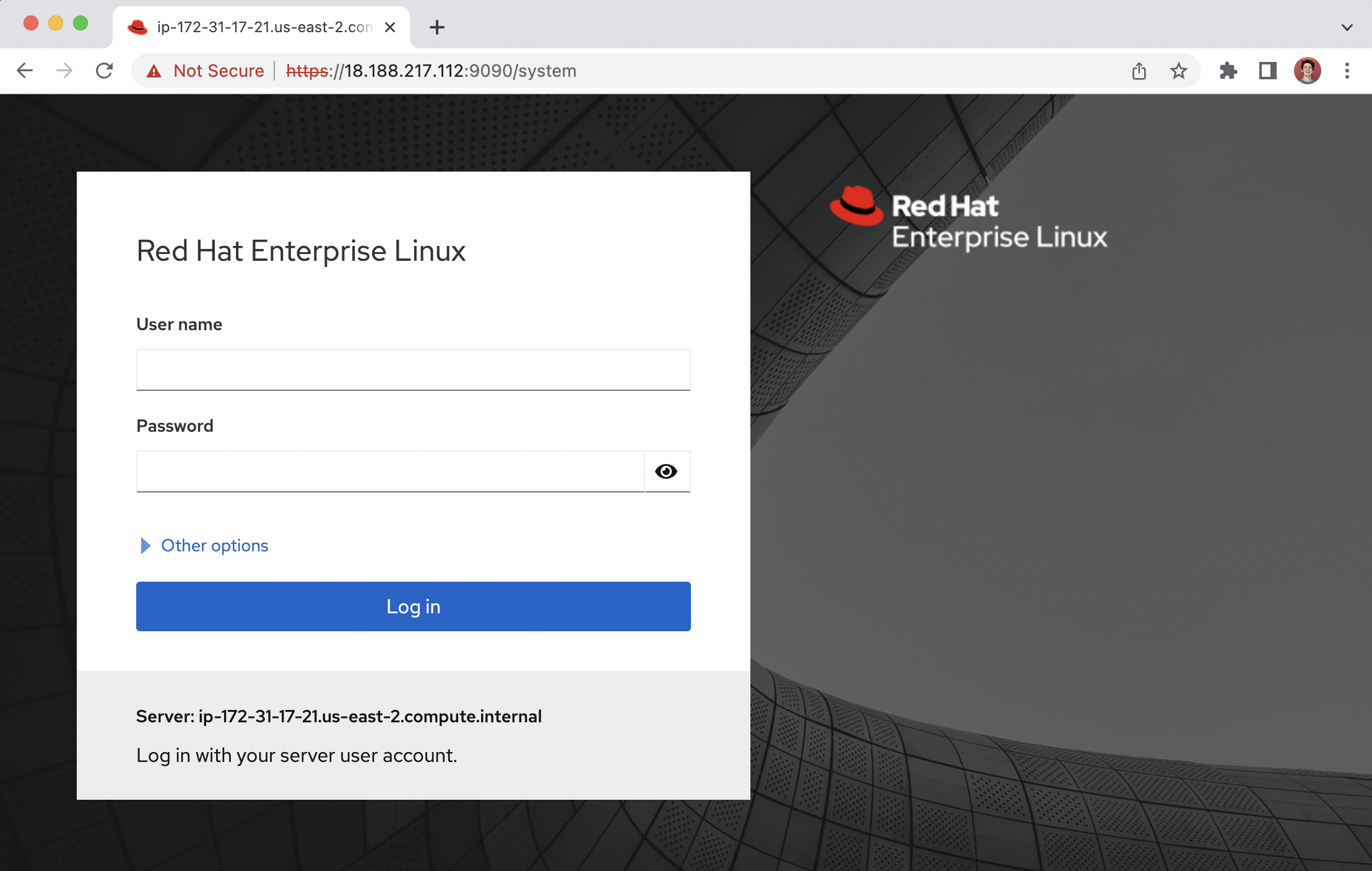
From here, you can use your RHEL credentials that you made during setup to access the Cockpit interface.
Using cockpit: Metrics
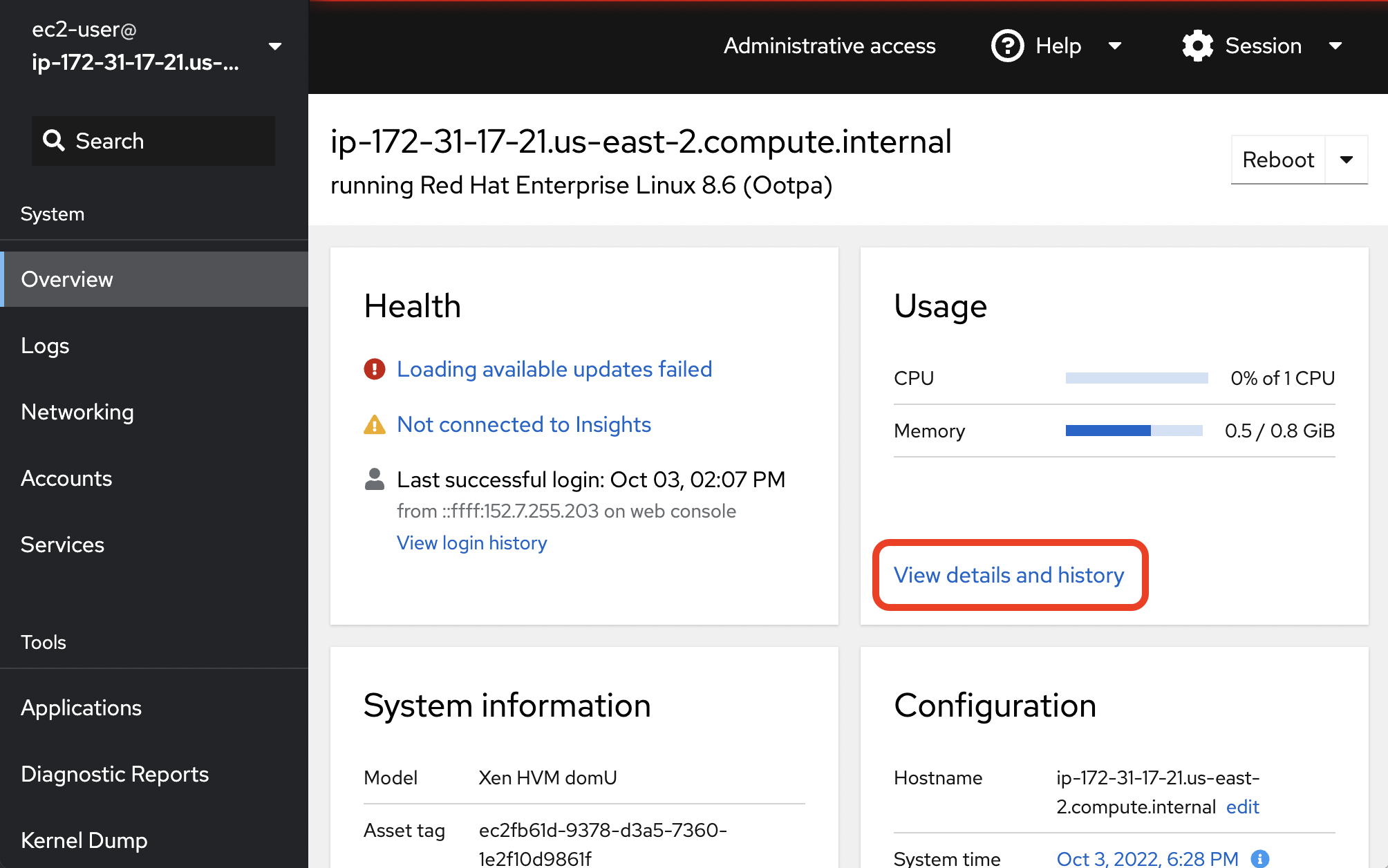
Let’s firstly use Cockpit to get a real-time update on our machine’s performance metrics. From the Overview dashboard, select the View details and history to visit the metrics page.
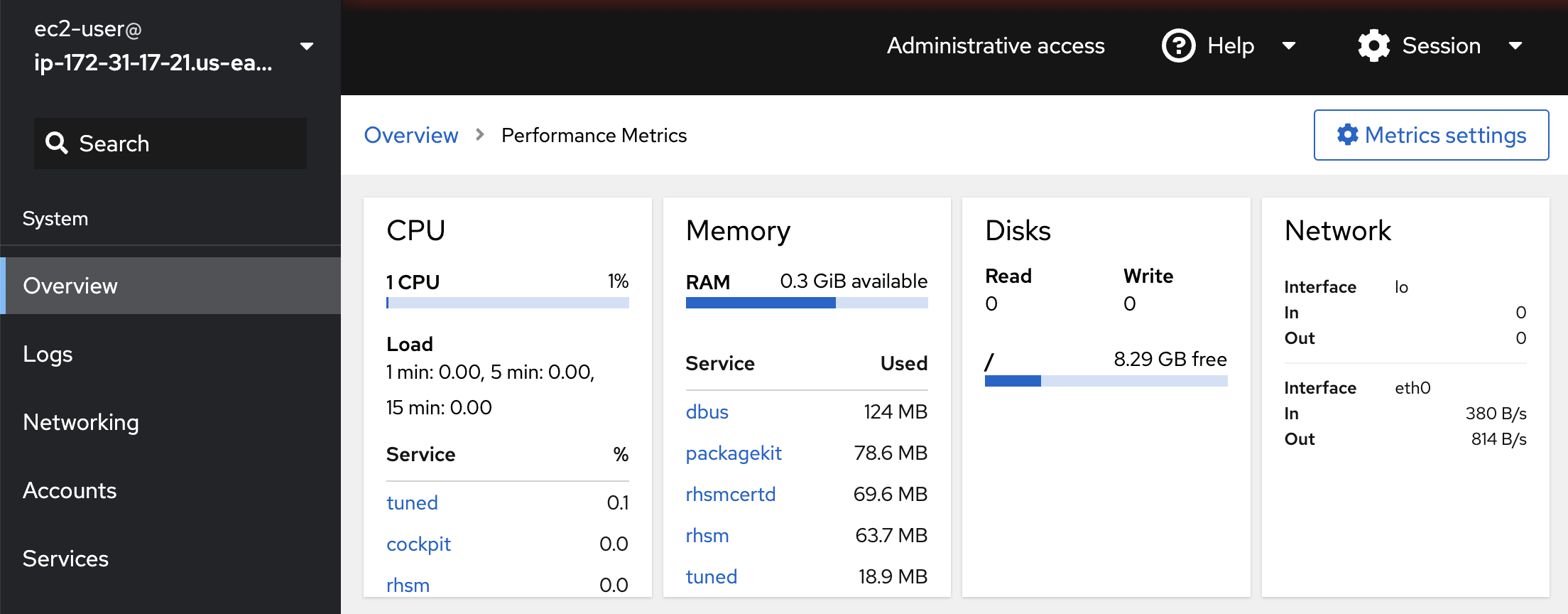
Here, we can see our RHEL machine’s performance, including CPU utilization, memory, and disk space.
Using cockpit: Accounts
We can use Cockpit to create new accounts, and modify our existing ones. From the Overview dashboard, select the Accounts tab.
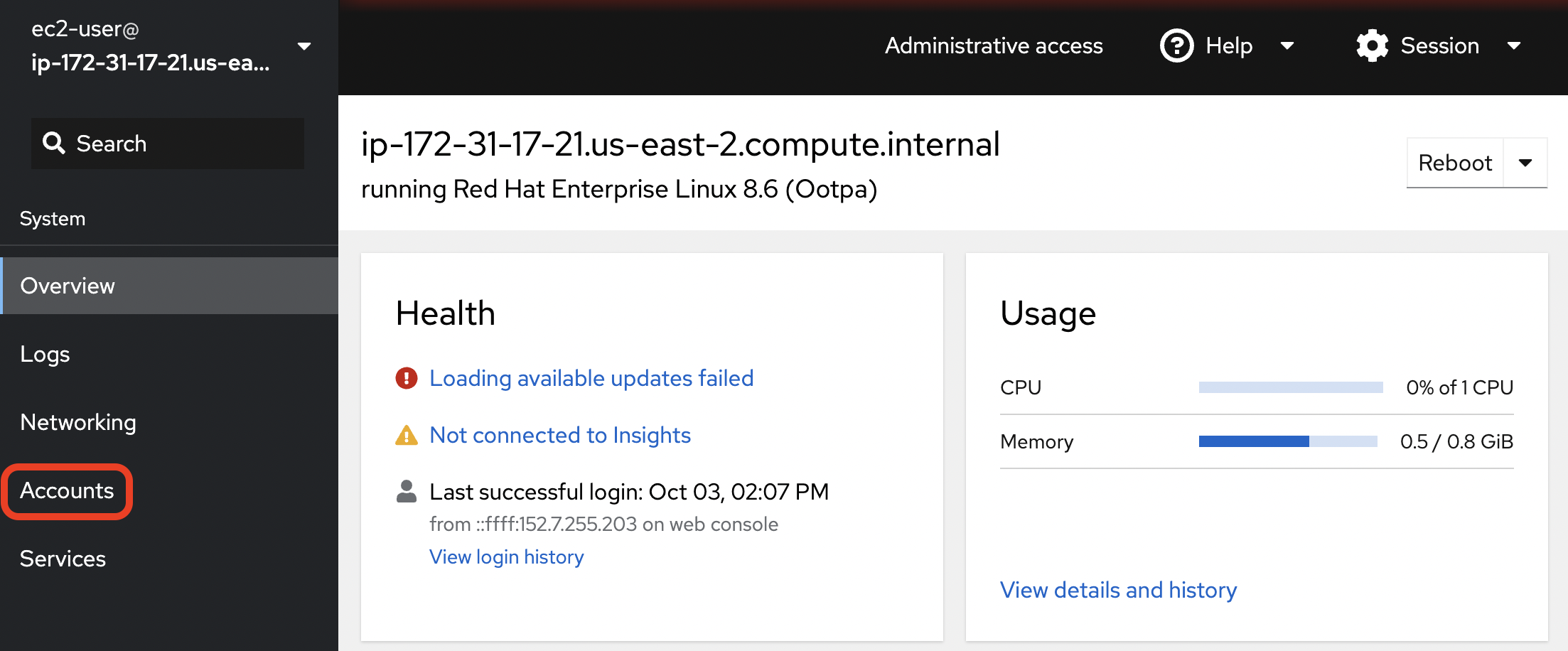
The Accounts dashboard allows us to work with our machine’s accounts. Let’s select our current user for example.
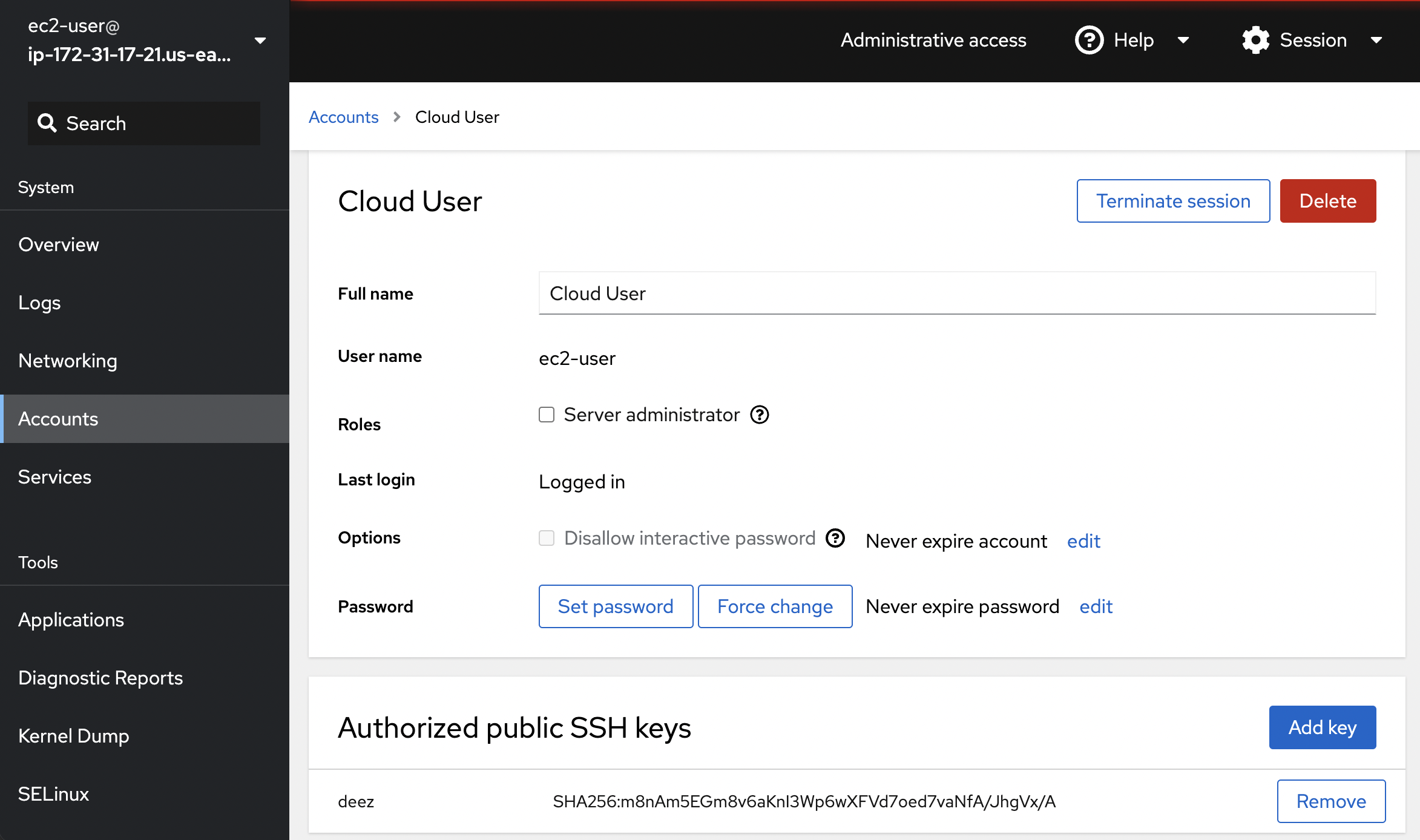
Cockpit provides an easy GUI to give our user administrative permission, logs of login history, changing the password, and even modifying authorized SSH keys.
Using cockpit: Terminal
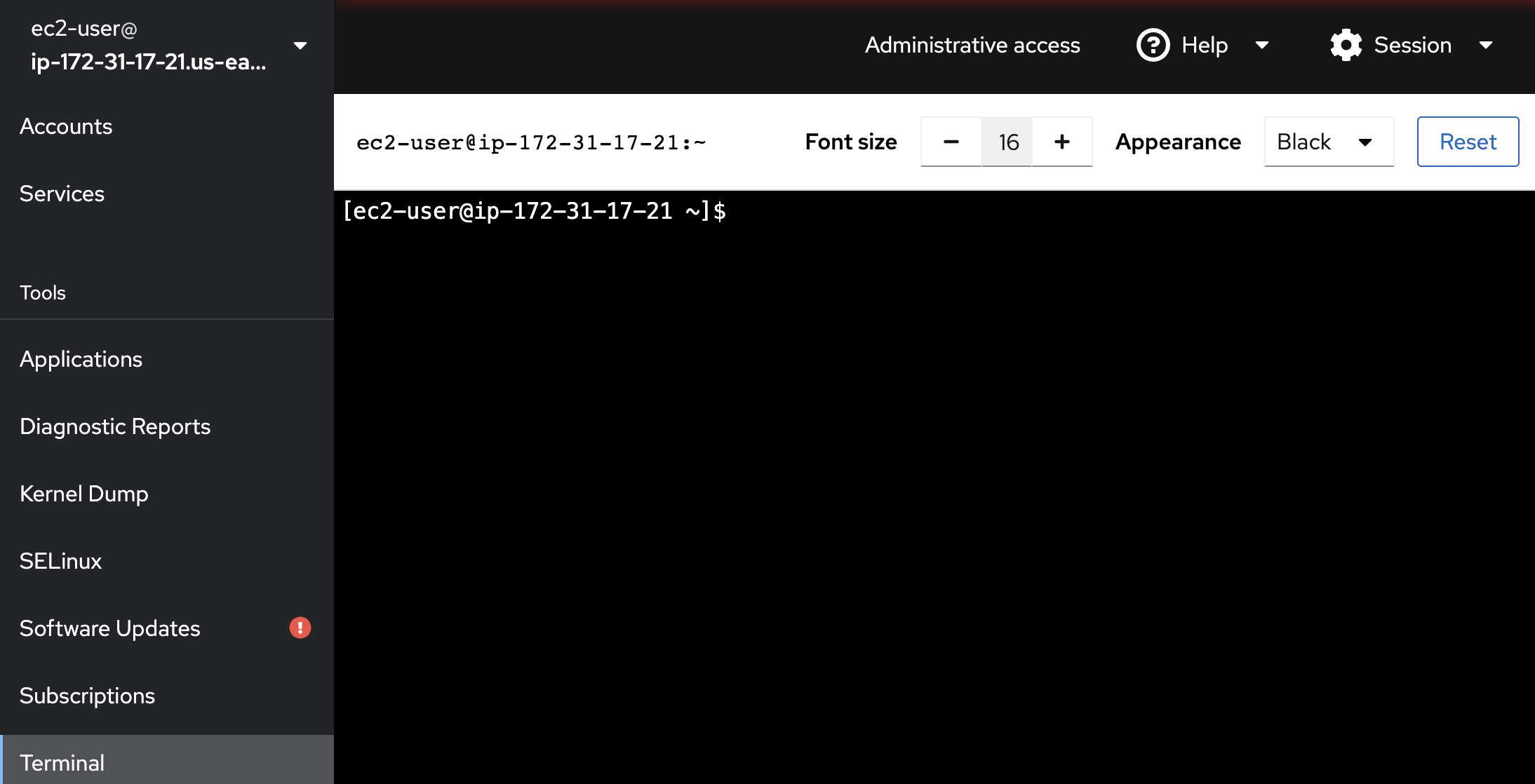
A simple feature of Cockpit is that it provides a standard shell in a terminal, which allows for the same privileges as if you had logged in through SSH. From the Overview dashboard, select the Terminal tab.
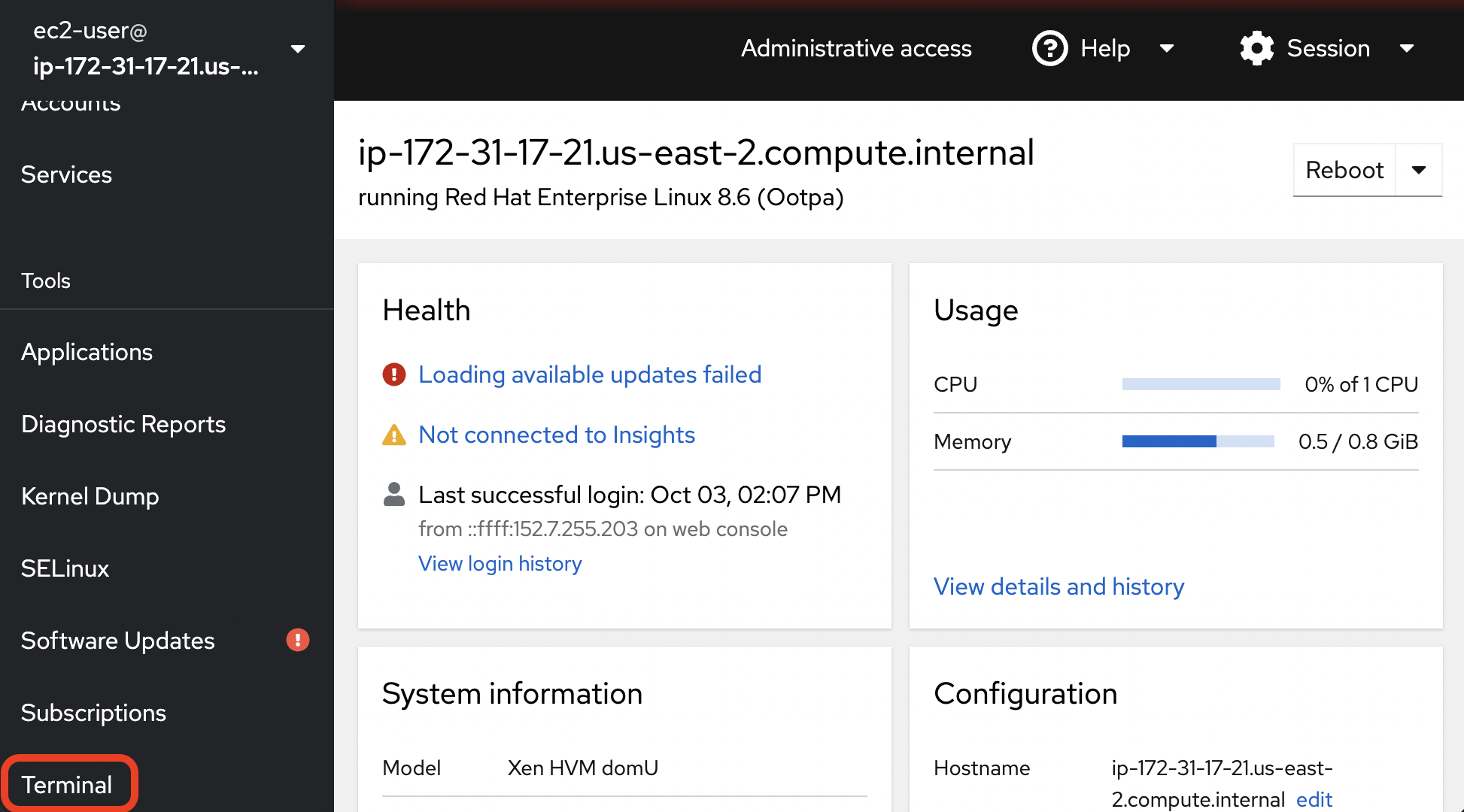
Here, we can do anything we could do over SSH, but instead in our web browser.